Inserting an Increment Button: to control the values in a cell
In spreadsheet work the cell values are usually entered on the keyboard, but
sometimes it is desirable to keep attention completely on the screen display,
and not to use the keyboard at all for entering or changing cell values, for
example with an interactive whiteboard. This is achieved using increment buttons.
There are two types available, Excel calls them Scroll Bars and Spinners.
The Spinner is a two part button formed from an up arrow and a down arrow,
with a control set so that the values stay within a chosen range and only change
in steps of a specified size.
The scroll bar is the same but with a slider between the two arrows, and is
useful for moving quickly across a large interval.
Spinners and Scroll bars are found on the Forms toolbar.
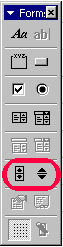
- To turn on any toolbar go to the View menu, choose toolbars and select the
toolbars you wish to have on view.
- If you drag a toolbar to the top or bottom of the workspace it will locate
itself with the toolbar buttons already there.
- Choose the tool (spinner or scroll bar) from the toolbar, then just click
and drag out the rectangular outline for the button you wish to create. It
can be any size.
- Note: the size and other characteristics can be changed again at any time.
- After you have a button on the workspace the next task is to connect it
to a cell. Right-click on the button, choose Format Control, and complete
the dialogue box.
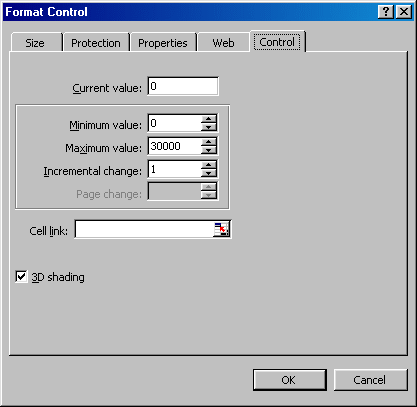
- Check you have the Control tab.
- Set the range you require, by using the Minimum and Maximum value fields.
- Set the step size (incremental change). This must be an integer.
- Set the cell reference (Cell link) to determine the location for which this
button will control values.
- Click OK